
How to Calculate Render Time for Architectural Projects
Learn how to calculate render time from frame count, image settings and hardware capacity, with a formula, worked examples and a pilot test.
You've promised a client eight views by Friday, your test still took 8 minutes, and the math looks harmless. Then the glass facade view runs three times longer, two frames fail overnight, and the revision round isn't one image, it's every view that shares that material. That's how a schedule breaks. Not because rendering is mysterious, but because you trusted one easy number and called it a plan.
To calculate render time properly, you don't need a better guess. You need measured units, honest arithmetic, and a separate line for the hidden time between finished frames and a delivered presentation.
The Formula for Calculating Render Time
Render time equals the number of units multiplied by the time per unit, plus setup and file writing. For animation, the unit is a frame, and frame count equals duration multiplied by frames per second. The formula in the Drop & Render benchmarks is total render time = frame count × average frame time, and that simple multiplication is where most optimistic schedules fall apart.
A still is one unit. Eight design options are eight units, even if they share a camera. A walkthrough is hundreds of units, and each one carries the full cost of your resolution, samples and materials. Small per-frame numbers stop looking small very quickly.
Worked Render Time Examples
| Job | Units | Time per unit | Total on one machine |
|---|---|---|---|
| Single still at 4K | 1 image | 8 min | 8 min |
| Eight design options as stills | 8 images | 8 min | 64 min |
| 20-second walkthrough at 30 fps, light frames | 600 frames | 2 min | 20 hours |
| 20-second walkthrough at 30 fps, heavy frames | 600 frames | 10 min | 100 hours |
| 30-second clip at 24 fps, heavy frames | 720 frames | 10 min | 120 hours |
Read the last row slowly. 720 frames at 10 minutes each is 7,200 minutes, or 120 hours, about five continuous days on one machine. Nothing went wrong in that example. No crashes, no revisions, no queue. The arithmetic alone eats the week.
Frame rate deserves the same respect. For the same duration, 30 fps needs 25 percent more frames than 24 fps, so agreeing to 30 fps in a meeting without checking is agreeing to a quarter more compute before you've changed a single material.
Practical rule: Write one line before anything else. Units, minutes per unit, total. If that line doesn't exist, you don't have an estimate, you have a hope.
Keep units consistent while you do it. Mixing minutes and hours in one column is the most common arithmetic slip I see, and it turns 100 hours into a number that looks like an afternoon. Convert everything to minutes first, multiply, then convert the total back to hours.
Remember what the result is. It's compute time on one machine, not calendar time and not a delivery date. Parallel machines, transfers, queues and revisions all sit on top of it. The formula gives you the floor. Everything else in this article is about how far above that floor your real deadline needs to sit.
How Image Settings Change the Clock
Settings don't add time evenly, and they don't add quality evenly either. I would check them in order of impact, because fixing the biggest cost first saves you from tuning details that barely move the total.
Output resolution comes first because time grows roughly with pixel count. A 4K frame carries around four times the pixels of 1080p, so you'll usually pay close to four times as long per still. If the client is reviewing on a laptop, rendering final 4K for every option round is money spent on pixels nobody sees.
Samples and ray bounces are trickier because their cost can rise faster than linearly. Raising bounces to clean up one grainy corner in an indirect-lit interior can slow the whole frame, including areas that were already clean. Always judge that trade on the hardest corner of the hardest view, not on an easy exterior.
Image Settings and Their Effect on Render Time
| Setting | Effect on render time | What to check before you commit |
|---|---|---|
| Output resolution | Rises roughly with pixel count, 4K costs close to four times 1080p | Confirm the final size the client or print needs |
| Samples or ray bounces | Can rise faster than linearly as bounces increase | Compare quality gain against time on the hardest corner |
| Denoiser | Reduces samples needed but adds a fixed pass per frame | Check for smearing on glass, foliage and fine texture |
| Glass, water and glossy materials | Add secondary rays and can run several times slower than matte scenes | Time a glass-heavy view separately from the rest |
| Vegetation and dense geometry | Slow visibility and shading work, often the slowest views | Identify the densest view in the set |
| Frame rate for animation | Frame count scales directly, 30 fps needs 25 percent more frames than 24 fps | Confirm the required fps with the client before rendering |
A denoiser lets you cut samples and still get a clean image, which is a real saving, but it adds a fixed pass to every frame and changes the look. Fine foliage, glass edges and small texture detail can smear. Test it on those materials, not on a plain wall.
Materials and geometry are where views diverge. Glass facades, water and glossy floors generate secondary rays, so an interior full of glass can run several times slower than the same room in matte finishes. Vegetation and dense geometry slow visibility work, which is why the view with layered planting is usually the last one still cooking.
Change one setting at a time on one fixed test view and log the time against each change. That log tells you what each quality decision costs, so your estimate reflects the settings the client will receive, not the lighter settings you used while exploring.
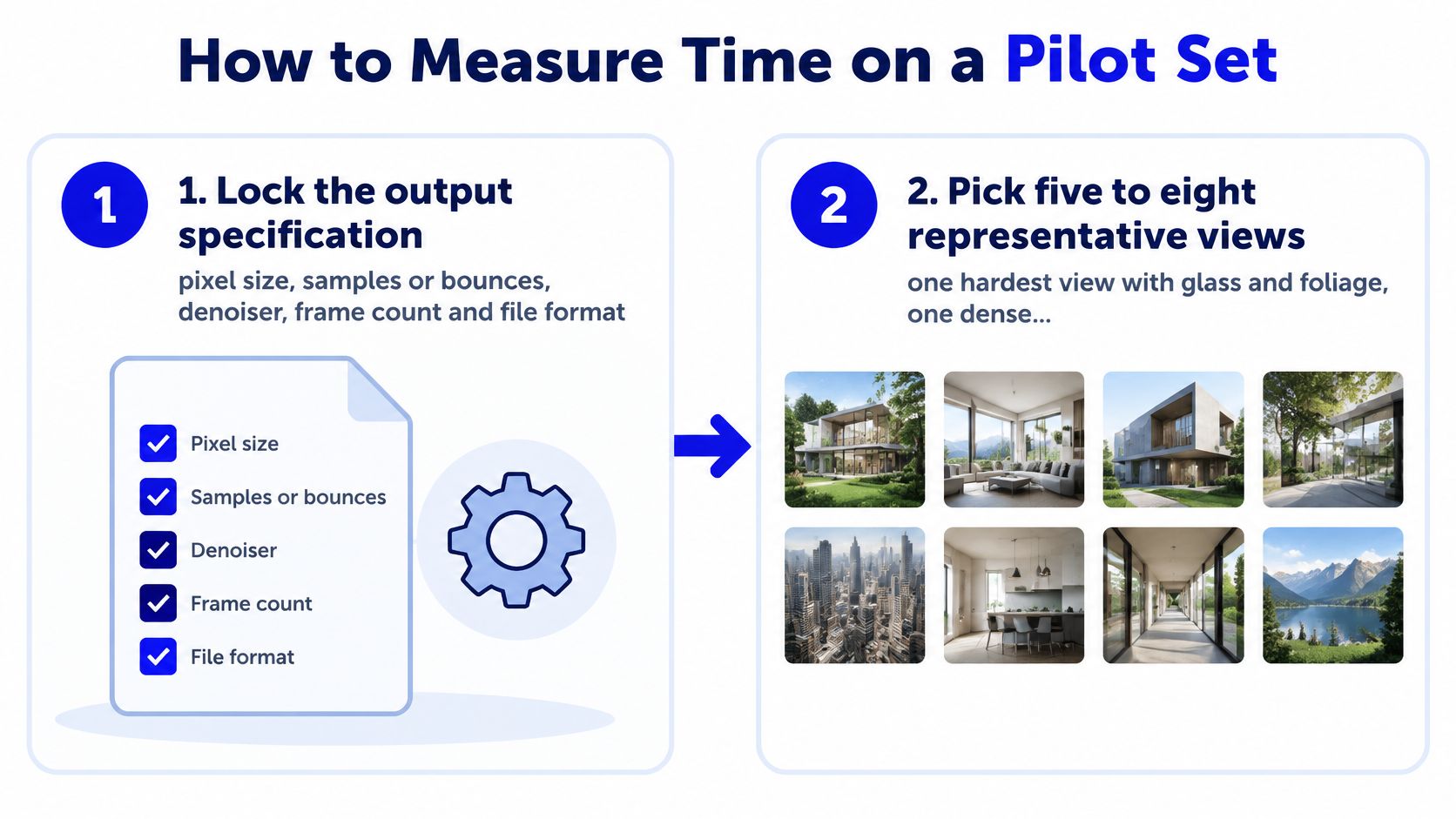
How to Measure Time on a Pilot Set
A single test frame can miss the slowest camera, the heaviest materials or the hardest lighting. Measure a small set that represents the job, then use its frame times to estimate the full sequence. Total render time equals frame count multiplied by representative frame time, plus setup and file-write time.
Seven Steps That Produce a Usable Number
- Lock the output specification. Set the pixel size, samples or bounces, denoiser, frame count and file format. A pilot at draft settings will not predict final render time.
- Choose five to eight representative views. Include a difficult view with glass or foliage, a dense plan-level view, the toughest lighting condition and an easy view. The range helps expose how much frame times vary.
- Render the pilot at the locked settings. Record each frame's render time, along with CPU and GPU use, memory pressure and file-write time. Keep these figures separate so compute time is not confused with output time.
- Choose a planning frame time. Use the mean for a typical estimate, then check the P95 or P99 to see how much slower the costly frames run. The median and fastest frame can understate the time needed to finish the sequence.
- Calculate compute time. Multiply the number of frames by the chosen planning frame time, then add setup and file writing.
- Add contingency for outliers. Base the margin on the revisions and variation you expect, rather than assuming every frame succeeds on the first attempt.
- Validate on a second segment. Time another camera segment or scene before committing to a delivery date. A single segment may make the estimate look faster than the full job.
These timings apply to the hardware used for the pilot. If the final render moves to another workstation or a render farm, measure the same pilot set there. A different machine can change the schedule even when the scene and output settings stay fixed.
Interactive walkthroughs need a frame-rate check as well as a total-time estimate. The NovaBench GPU benchmark documentation describes measuring frame time from GPU start to completion timestamps, averaging the results, and calculating FPS = 1000 divided by mean frame time in milliseconds. At 30 FPS, each frame has a 33.33 ms budget. A mean below that limit can still hide slow frames, so review percentiles as well.
Schedule against the slow frames, not the one you liked rendering.
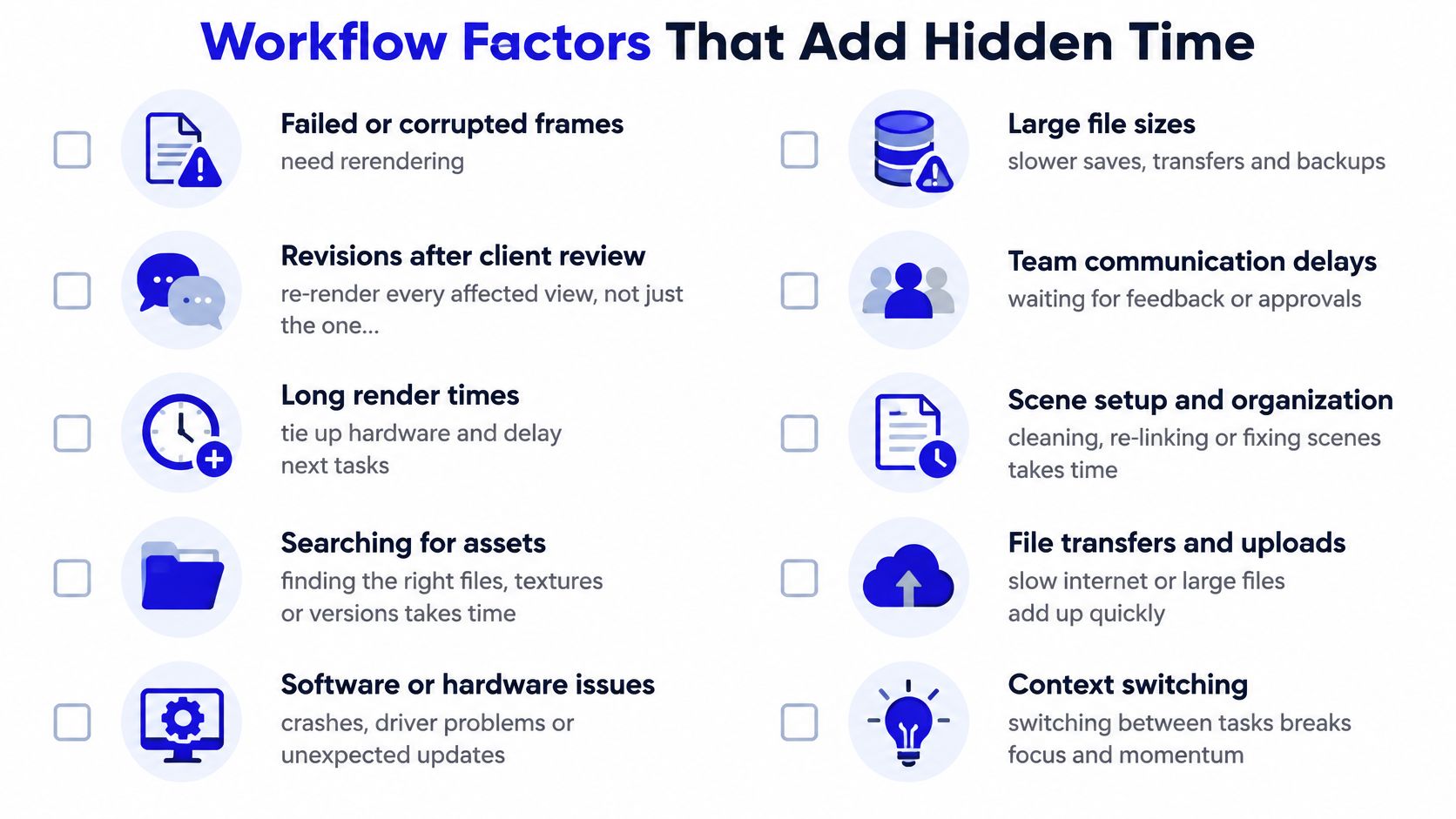
Workflow Factors That Add Hidden Time
Your formula total assumes every frame succeeds once, nobody asks for changes, and the machine starts the second you click render. Real projects don't work that way. Price these items explicitly, even if your estimate for each one is rough.
The Hidden Time Checklist
- Failed or corrupted frames: They need rerendering, and you usually discover them after the batch finishes, not during it.
- Revisions after client review: A material change re-renders every affected view, not just the one shown in the meeting.
- Scene preparation: Asset packing, texture checks and proxy fixes happen before submission and block everything behind them.
- File transfer: Moving a large scene and its textures to a remote machine, then pulling results back, can consume hours on big projects.
- Queue time: Your job waits while other jobs hold the machines, and that wait counts against your deadline exactly like rendering does.
- Export and post-processing: Compositing, grading and presentation assembly start only after the last frame lands.
- Uneven frame complexity: Parallel machines finish at different times, so some capacity sits idle while the slowest frames clear.
Three habits keep this manageable. Run overnight batches so queue and transfer time passes while you're away instead of while a client waits. Keep a simple log of estimated against actual times for each project, because two or three logged jobs will calibrate your margin better than any generic advice. Treat the margin as a budget tied to expected revisions, so a project with an undecided client carries more slack than one with a signed-off design.
Compute time is what you can measure, while the calendar date is what you have to promise.
That gap is not padding. It's the difference between a rendering statistic and a commitment other people plan around.
From Compute Hours to a Delivery Date
A render estimate becomes a delivery date only after you account for machine capacity and calendar delays. Calendar time equals total compute divided by working machines, plus transfer and queue time. Four identical machines could turn 100 compute hours into about 25 hours in theory. Coordination and uneven frame complexity reduce that gain, so leave room in the schedule instead of promising the theoretical minimum.
Hardware and Service Capacity Options
| Capacity option | Parallel jobs | Cost model | Best fit | Main delay risk |
|---|---|---|---|---|
| One local workstation | 1 | Hardware you already own | Single stills and quick checks | Every render blocks the machine |
| Several local machines | 2 to 4 | Hardware purchase and upkeep | Option batches and steady output | Scene sync and uneven frame load |
| Render farm | Many, set by provider | Pay per job or per frame | Long animations and tight deadlines | Upload, queueing and download time |
| Cloud rendering service for stills and edits | Multiple, depending on provider | Credits or pay per job | Design option sets and revisions | Queue depth at peak hours |
Choose capacity based on the work and the deadline. One local workstation handles stills and checks, but a long batch also blocks the machine you use for modeling. Several local machines can process option batches in parallel, provided their scene files and assets stay in sync. A mismatched texture folder can leave one frame out of step with the rest.
A render farm can shorten the compute portion of a long animation by distributing frames across machines. Include the full round trip in your estimate: uploading scene files and textures, waiting in the queue, rendering, and downloading results. The quoted render speed covers only part of that timeline, and queue time can increase during busy periods.
For stills and revisions, a credit-based cloud service makes the cost visible before submission. On mnml.ai, the Render button shows its price, such as Render · 25 credits for one image on the default engine. Re-solving a definition or dragging a slider does not spend credits; only submitting a render does. That separation helps you explore options without treating every design adjustment as a paid output.
Locking the Date
- Include the schedule margin. Add the expected revision time, transfers, and queue time to the parallel compute estimate before promising a date.
- Freeze settings before final submission. Changing settings after some frames finish can leave the set inconsistent or require a restart.
- Run the pilot on the delivery platform. Use the same set, settings, and output specification planned for the final job.
- Log estimated and actual times. Record both when the job ships, so future estimates can use project-specific results.
Start with the total compute hours for one machine. That is the work's baseline; available machines determine how quickly it can run, while queueing and revisions determine how much calendar time to add. A date built from those separate figures is easier to defend in a client meeting.
When a pilot shows that the option set will not fit the week, change the workflow before committing to the date. mnml.ai turns sketches and model views into presentation renders without requiring material and lighting setup. You can compare up to four variations side by side in Flow, and batch-render up to eight design options through the Grasshopper plugin.